Base64 Encoder / Decoder
Type or paste text on the Encode tab to get its Base64 form, or paste a Base64 string on the Decode tab to turn it back into readable text. The conversion uses your browser's built-in functions, so what you paste stays in the tab.
Updated · by the Linkstonic team
What happens to your text
Base64 is a fixed standard, so the interesting parts are the edges: non-English text, bad input and what the tool won't accept.
UTF-8 first
Before encoding, the text is converted to UTF-8 bytes, then those bytes go through the browser's btoa function. That is why "é", "€" or an emoji encode without errors. Plain btoa on its own throws an error on any character outside Latin-1, which trips up a lot of quick scripts.
Size grows by a third
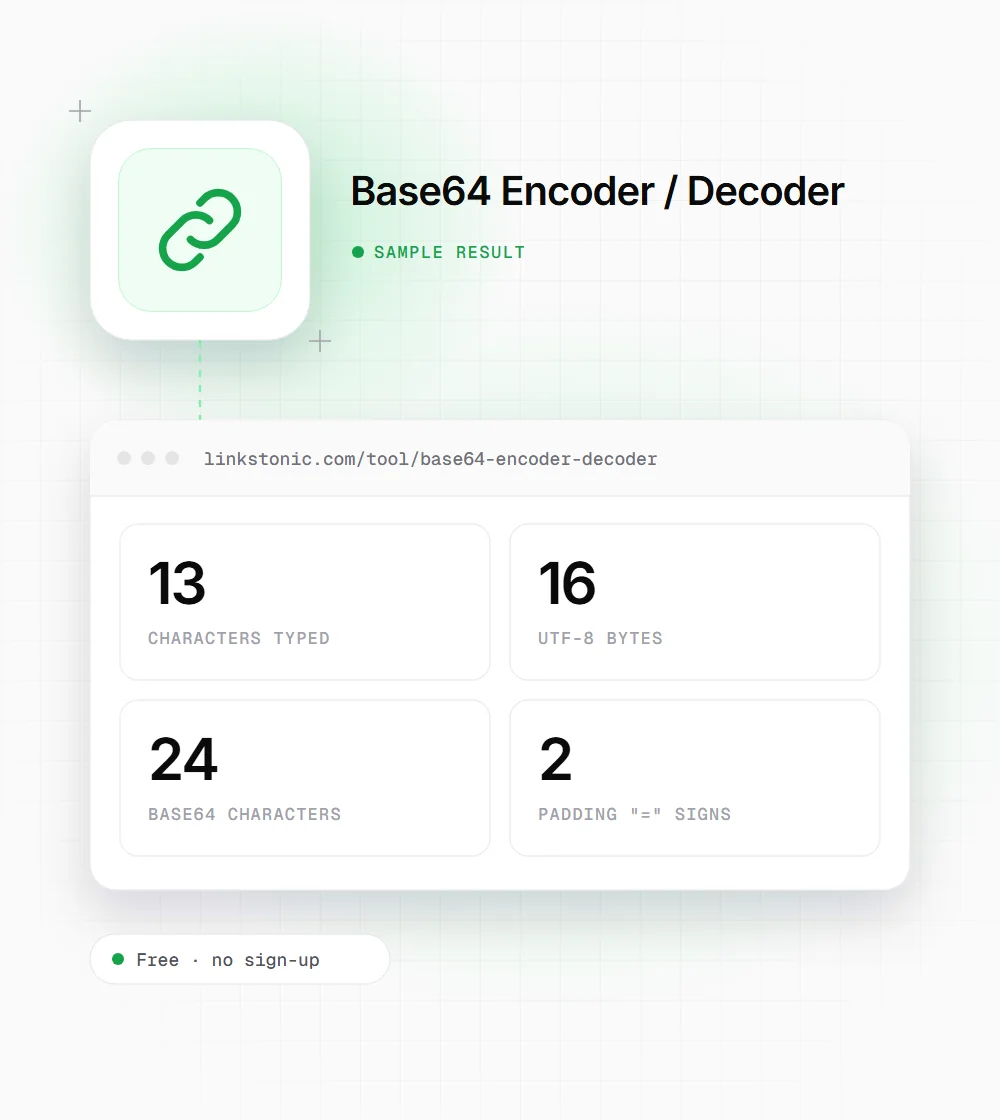
Every 3 bytes of input become 4 Base64 characters. When the byte count isn't a multiple of 3, the output is padded with one or two "=" signs. So 16 bytes of text always come out as 24 characters, two of them padding.
Decoding and errors
Decoding runs atob, then reads the bytes as UTF-8. If the string has characters outside the Base64 alphabet, or decodes to bytes that aren't valid UTF-8 text, the output box shows an "Error decoding" message flagging invalid Base64 instead of printing garbage.
Forgiving about spacing
Line breaks and spaces inside the string are ignored, so Base64 copied from an email header or wrapped at 76 characters decodes fine. Missing "=" padding is also tolerated, as long as the length isn't one character past a multiple of four.
Standard alphabet only
The URL-safe variant, which swaps "+" and "/" for "-" and "_", fails here. That variant shows up in JWTs and some API tokens. Swap those two characters back by hand before decoding.
One shared box
The Encode and Decode tabs share the same input and output. Switch tabs and your text comes with you, which makes a round-trip check quick: encode, copy the result, paste it back on Decode.
Encoding a line with accents
We typed a short menu line with an accented letter and a euro sign. Both are multi-byte in UTF-8, which is where naive encoders break.
Café menu: 5€
Thirteen characters become sixteen bytes because "é" takes two bytes and "€" takes three. Sixteen isn't a multiple of three, so the output ends in two "=" signs.
Where Base64 turns up at work
Most people meet Base64 by accident, in a config file or an API response. These are the usual spots.
Developers testing APIs
HTTP Basic auth sends "user:password" as Base64 in a header. Decoding a captured header shows which account a request used. Encoding a test pair builds the header by hand. Use test credentials, never production ones.
Email and support staff
Email headers and MIME parts are often Base64 encoded. Decoding a subject line or a short text part shows what the message actually said when a mail client mangles it.
Marketers reading tracking links
Some ad and email platforms pack campaign data into a Base64 query parameter. Decoding it shows which campaign, list or user ID a link carries, which helps when attribution looks wrong.
Base64 is packaging, not protection
The most common mistake I see is treating Base64 as a way to hide something. It isn't encryption. Anyone can paste the string into a tool like this one and read it in a second. If a password, API key or customer email is sitting in a config file or URL as Base64, treat it as plain text that is out in the open.
What Base64 is good at is moving binary or awkward characters through systems built for plain text: email bodies, JSON fields, data URIs in CSS, HTTP headers. It costs about 33 percent in size, so a 30 KB image inlined as a data URI adds roughly 40 KB to the file that holds it.
For SEO, that size cost is the part to watch. Inlining large images as Base64 in HTML or CSS makes the page heavier and stops the browser caching the image separately. Small icons are fine. Search engines and AI crawlers read the text around your images, not the encoded blob, so a big inline image gives them nothing extra to work with.
Fixing a string that won't decode
Most decode errors come from copy and paste, not from the data itself.
- 01
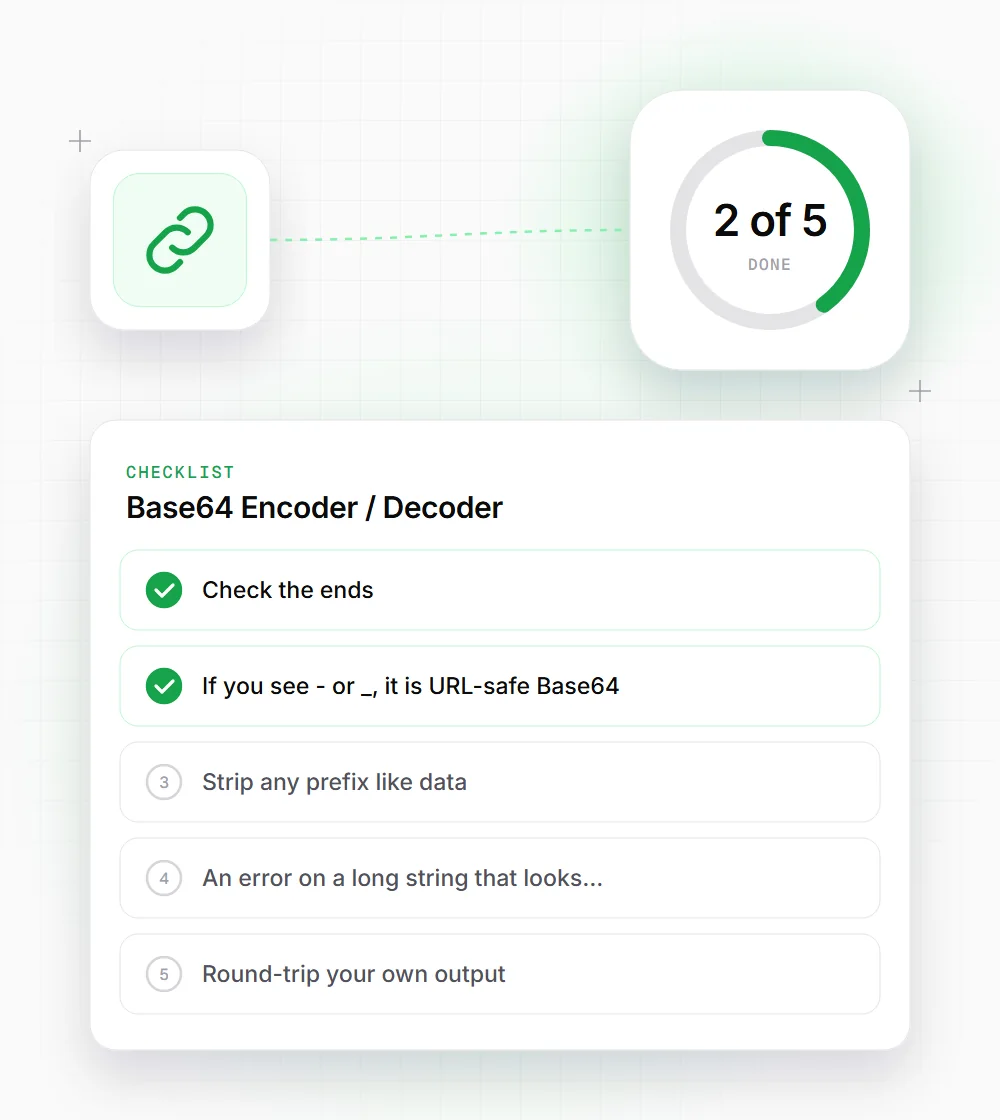
Check the ends. A stray quote mark or a missing last character is the most common cause of an error.
- 02
If you see "-" or "_", it is URL-safe Base64. Replace them with "+" and "/" and try again.
- 03
Strip any prefix like "data:image/png;base64," before decoding. Only the part after the comma is Base64.
- 04
An error on a long string that looks valid may mean it holds an image or a file, not text. This tool decodes text only.
- 05
Round-trip your own output: encode, copy, switch to Decode, press the button. You should get the original back exactly.