YouTube Transcript Generator
Turn any video into text in seconds
Paste a YouTube link and get the full transcript with timestamps, in every caption language the video has. From that same link you can check the video's SEO score, build a mind map, find Shorts clips, draft social posts or make an infographic.
Updated · by the Linkstonic team
From YouTube link to finished content in 3 steps
Three steps. Most transcripts are on screen a few seconds after you paste the link.
Paste a YouTube link
A normal watch URL, a youtu.be share link, a Shorts link, a Live replay or an embed link all work. If all you have is the video ID, paste that on its own and the tool finds the video.
Get the transcript
The transcript loads in seconds next to the video player. Every caption track the video has sits in the language menu, with creator-uploaded and auto-generated tracks labeled separately so you know which one you're reading.
Pick what you need
Eleven tabs work on the same transcript: SEO score, mind map, summary and chapters, insights, study mode, clip finder, social posts, infographic, chat and notes. There's nothing to re-upload and no extra steps between them.
Eleven tools, one link
Every tab reads from the same transcript, so nothing has to be pasted or uploaded twice. Free marks features that run without AI. AI marks the ones that use it.
Transcript that follows the video
Every caption language, with creator-uploaded and auto-generated tracks labeled. Click a timestamp to play that second, follow the highlighted line, search, save lines to Notes, tidy fragments with AI Clean paragraphs, and download TXT, SRT, VTT or JSON.
Video SEO score Free
A 0 to 100 score across title, description, tags, captions and thumbnail, with the three biggest fixes listed first. It also checks whether the video actually says its target keyword, how often and in the first minute, with a clickable timestamp for each mention.
Mind map
The quick map is free and instant, built from the creator's chapters or from where the topic shifts, while the AI Smart map writes short labels in 10 languages. Click a branch to play that part, then export PNG, SVG or Markdown for Notion or Obsidian.
Summary and chapters AI
A TL;DR, key points with timestamps, takeaways and topic tags, in 10 languages including Hindi and Hinglish. The creator's own chapters show up instantly, and when a video has none, AI suggests chapters you can paste into your description.
Insights Free
A keyword timeline marks every moment a word is said, next to a word cloud and a minute-by-minute speaking-pace chart. Filler words, repeated phrases and the longest pauses show creators exactly where their delivery drags.
Study mode AI
Flashcards that flip, with CSV export for Anki, Quizlet or Notion, plus a quiz that keeps score. Every quiz answer links back to the moment in the video where it was said, so checking one takes a click.
Clip finder for Shorts and Reels
Quick clips picks strong moments for free and explains each pick, and Smart clips (AI) writes a hook and caption. Preview at 9:16, 1:1 or 16:9, grab a cover image and an .srt timed from 0:00, or cut an MP4 from your own file in the browser.
Social posts
An X thread, a LinkedIn post, an Instagram caption and a Facebook post from one video. Quick drafts are free and built from key sentences, and Smart posts (AI) come in Professional, Casual or Bold, with a character counter for each platform.
Infographic
A one-page visual summary with the headline, thumbnail, key points and footer, sized for Instagram 4:5, Square, Story 9:16 or LinkedIn 16:9. Pick the Light, Dark or Green theme, edit every word, then download the PNG.
Chat with the video AI
Ask a question in any language and the answer comes only from what's said in the video, with links to the exact moments. When the video doesn't cover your question, the chat tells you so instead of guessing.
Notes
Highlight lines and add your own notes as you watch. They're saved in your browser, and you can export them as Markdown with clickable timestamp links that open the video at each moment.
What a result looks like
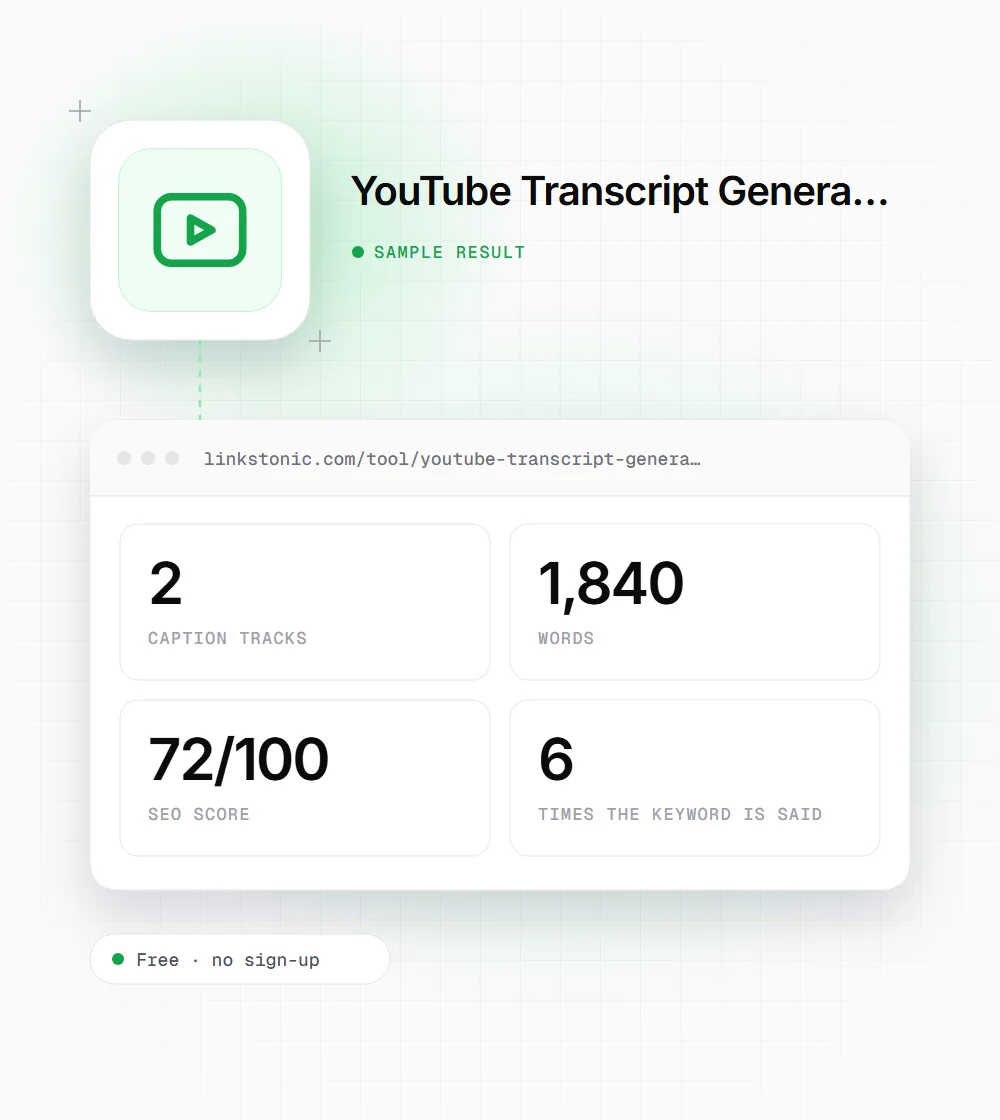
An illustrative result, not live output: a 12-minute English talk with one creator-uploaded caption track and one auto-generated track, checked in the SEO tab against a target keyword.
https://www.youtube.com/watch?v=VIDEO_ID

Language: English
Target keyword: video SEO
Use the uploaded English track when both exist. The spoken-keyword check reads the captions, and an auto-generated track that mishears a term can miss a mention.
Built for creators, marketers and learners
Most people arrive with one job in mind. These are the common ones.
YouTubers
Check your video's SEO score and whether you actually say your keyword, find Shorts moments with cover images, draft chapters for the description and download captions as SRT.
Marketers and agencies
Turn one video into an X thread, a LinkedIn post, an infographic and a blog outline. Quick drafts cost nothing, and Smart posts let you pick the tone before you edit.
SEO and GEO teams
See whether a video actually says the keywords it targets. AI search engines such as ChatGPT and Gemini cite videos by what's said in them, so the spoken words count too.
Students
Read a lecture in minutes instead of watching all of it, then test yourself with flashcards and a quiz whose answers link back to the moment they came from.
Researchers and journalists
Search a long video for one phrase, pull the exact quote and link readers to the second it was said, so anyone can check it against the source.
Podcasters
Get minute-by-minute speaking pace, filler words, repeated phrases and the longest pauses for every episode, so you know what to tighten before you record the next one.
How accurate is the transcript?
The tool uses the same captions YouTube shows in its own player. There's no extra speech-to-text layer on top, so it adds no new mistakes of its own.
| Caption type | What you get |
|---|---|
| Uploaded by the creator | Exactly what the creator published. The most accurate option. |
| Auto-generated by YouTube | Exactly what YouTube's speech recognition produced. These can include mistakes, so the tool labels them. |
| No captions on the video | No transcript. The tool says so clearly instead of inventing one. |
If a video has both, pick the track that isn't labeled auto-generated for the cleanest text.
Why the spoken words matter for search
Search engines and AI assistants can't watch a video. They read the text around it: the title, the description and the captions. YouTube and AI search engines both read the transcript, so the words you say out loud are part of your SEO whether you planned them or not.
That's why the SEO score looks at the transcript and not only the metadata. A video can have a tidy title and a full set of tags and still never say its target keyword, or say it once at minute nine. Most SEO tools can't see that. I'd rather know it before the next upload than find out after it's live.
Accuracy still matters. Auto-generated captions get brand names and jargon wrong, and those errors carry into the keyword count and into anything you publish from the text. If your own video only has auto-captions, check how your keyword came out before you trust the count, and fix names before you reuse the text anywhere public.
Getting more out of one video
A few habits that save time once the transcript is loaded.
- 01
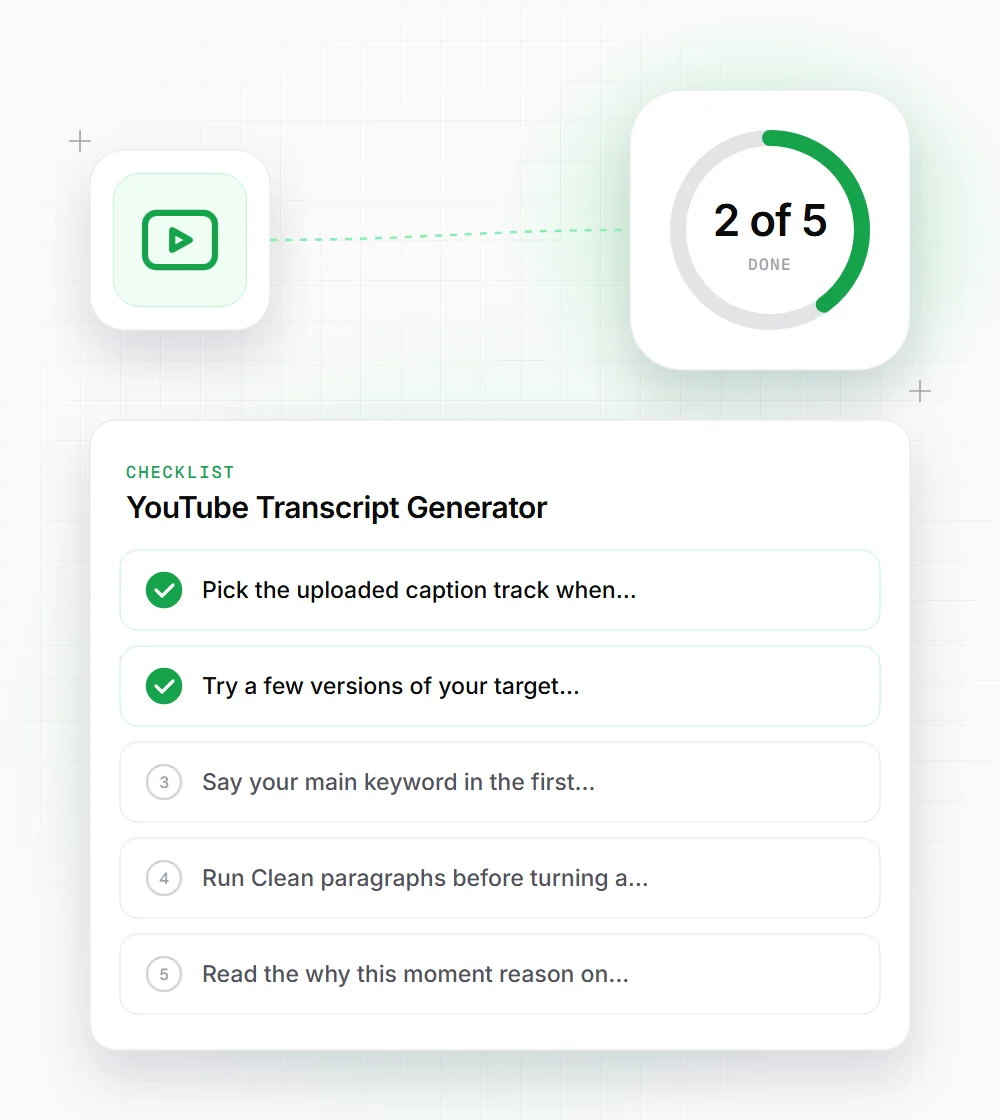
Pick the uploaded caption track when there is one. It matches what the creator published, so names and terms come out right.
- 02
Try a few versions of your target keyword in the SEO tab. It re-checks instantly, so comparing phrasings takes seconds.
- 03
Say your main keyword in the first minute. The SEO score checks for it, and the timestamps show exactly where it lands.
- 04
Run Clean paragraphs before turning a video into a post, so you start from punctuated text instead of caption fragments.
- 05
Read the "why this moment" reason on each quick clip, then preview it at 9:16 to see how the crop and hook text sit.
- 06
Export your Notes as Markdown when you finish. The timestamp links take you straight back to each moment in the video.
Related free tools
YouTube Tag Extractor
See the tags any YouTube video was published with.
Open tool Free toolYouTube Channel Analyzer
Analyze the videos of any public YouTube channel.
Open tool Free toolYouTube Keyword Explorer
Find keyword ideas for your next YouTube video.
Open tool Free toolYouTube Thumbnail Preview
Preview how a thumbnail and title look on YouTube.
Open tool Free toolYouTube Title Generator
Title ideas for a video, grouped by style.
Open tool