E-commerce Schema Validator
Enter the URL of a product page and the validator fetches it, pulls out the JSON-LD blocks and reviews every Product entity it finds. Each product gets its own card with blocking errors in red and softer warnings in amber, so you can see what to fix first.
Updated · by the Linkstonic team
What the validator looks at
The fetch and the checks run on Linkstonic's server, and the page shows what comes back. These are the behaviors you can rely on.
One page per run
Paste a single product page URL, the kind with one item and a buy button. Leave the box empty or at the https:// placeholder and you get a "Product page URL required" message. Category pages with many products can work, but results are easier to read one product at a time.
JSON-LD only
The tool extracts script blocks of type application/ld+json and looks for Product entities inside them. Markup written as microdata or RDFa in the HTML attributes isn't part of this check, so a store using those formats can come back empty even when Google reads its markup fine.
Final URL
Above the results you get a count of Product entities found and a link to the final URL that was checked. If that link differs from what you typed, the page redirected, and you should check that the redirect target is the product you meant to test.
Errors vs warnings
Each product card shows its name, or "Product #1", "Product #2" if it has none. Red bullets are errors, amber bullets are warnings. When a product has zero errors you see "No blocking errors flagged." even if warnings remain, so read the amber list too.
Nothing found
"No Product JSON-LD found." can mean the page has no markup, uses microdata, or adds its JSON-LD with JavaScript after load, which a plain server fetch may not see. Check the page in Google's Rich Results Test, which renders JavaScript, before assuming it's missing.
A typical product page result
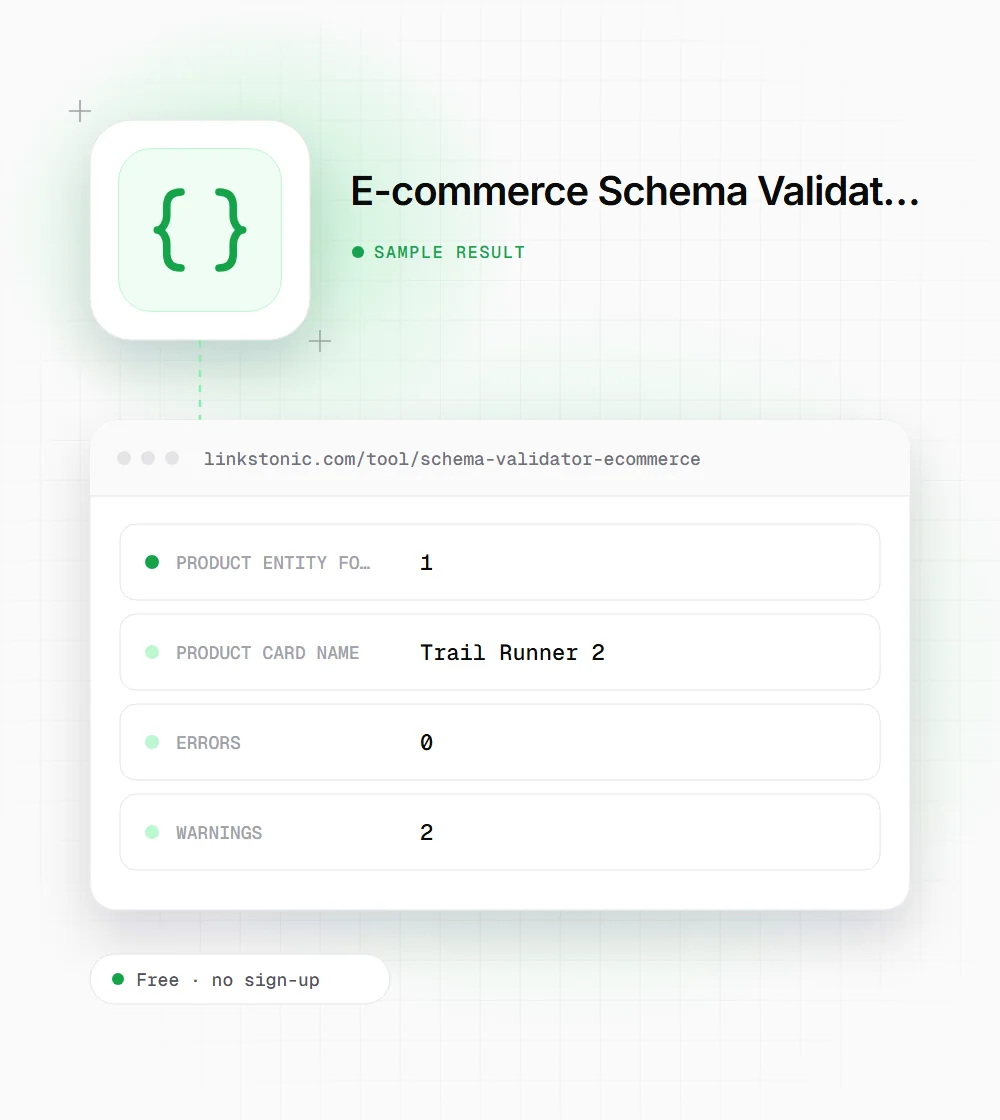
This is an illustrative result for a made-up store on example.com. It shows how a page with one Product block and a couple of soft issues reads in the tool.
https://store.example.com/product/trail-runner-2
The green line appears because there are no errors, but the two amber warnings still sit on the same card. On a real store those are worth fixing before a sale, when product listings get the most attention.
Who runs product markup checks
The same check answers different questions depending on who's asking.
Store owners after a theme change
Theme and plugin updates are the most common way product markup breaks. Run a couple of product URLs straight after any update, before the next Search Console report surfaces the problem days later.
Developers shipping templates
Check a staging product page before a release goes out. The per-product cards make it easy to see when a change has added a second Product block or dropped a field.
SEO consultants auditing a shop
Sampling one product from each template gives a quick picture of markup health on a new client's store. The error and warning lists translate directly into tickets for the dev team.
Product properties Google asks for
Google's product documentation splits requirements between product snippets and merchant listings. These are the properties we check first on any store.
| Property | What it holds | Why it matters |
|---|---|---|
| name | The product's name | Required for every Product rich result |
| image | One or more product image URLs | Required for merchant listing experiences |
| offers.price | The current price as a number | Needed for price to show in search |
| offers.priceCurrency | Three-letter ISO 4217 code, such as USD | Pairs with price; must match the page |
| offers.availability | A schema.org value such as InStock | Shows stock status in results |
| gtin / sku / mpn | Product identifiers | Helps match the page to the exact product |
| aggregateRating / review | Rating data from real reviews on the page | Only eligible when reviews are visible |
Google updates these requirements from time to time. Check its Product structured data docs before a big template change.
Where product markup goes wrong
Most broken product markup isn't missing. It's out of date. A theme update changes the price format, a sale price shows on the page while the JSON-LD still has the old one, or an out-of-stock item is still marked InStock. Google expects markup to match the visible page, and mismatches like these can cost a store its product rich results.
The second problem is duplication. An SEO plugin outputs one Product block, the theme outputs another and a reviews app adds a third. The validator's product count shows this straight away. Two or three Product entities for a single item usually means you should turn one or two sources off.
AI shopping answers in ChatGPT, Gemini and Google's AI Mode pull product facts from feeds and pages together. When your Merchant Center feed, your JSON-LD and your visible price disagree, the answer can show the wrong price or skip your store. I'd treat consistency across all three as the real goal, and the validator as one of the checks.
A quick product markup audit
You don't need to test every SKU. A sample of the right pages finds most template problems.
- 01
Test one product from each template: simple product, product with variants, and a bundle if you sell them.
- 02
Include one out-of-stock item and one on sale, since those are where values most often drift.
- 03
Compare the price in the results against the price a shopper sees, including tax display.
- 04
If the product count is more than one, find which plugin or app adds each block.
- 05
Confirm the final URL matches the canonical URL of the product page, especially for variant URLs with query strings.